
Table of Contents
Axis Setup
Axis cameras work out of the box with TetherX via ONVIF and RTSP. This guide covers additional configuration options for PTZ control, fisheye cameras, and the Companion series.
Native PTZ Control
For Axis PTZ cameras, TetherX can use the native Axis PTZ API instead of ONVIF for more precise control.
Enable Plain Config
Create a tunnel to your Axis camera and log in
Navigate to Settings → System → Plain config
In the left sidebar, select Layout
Enable the Plain config enabled checkbox
Click Save
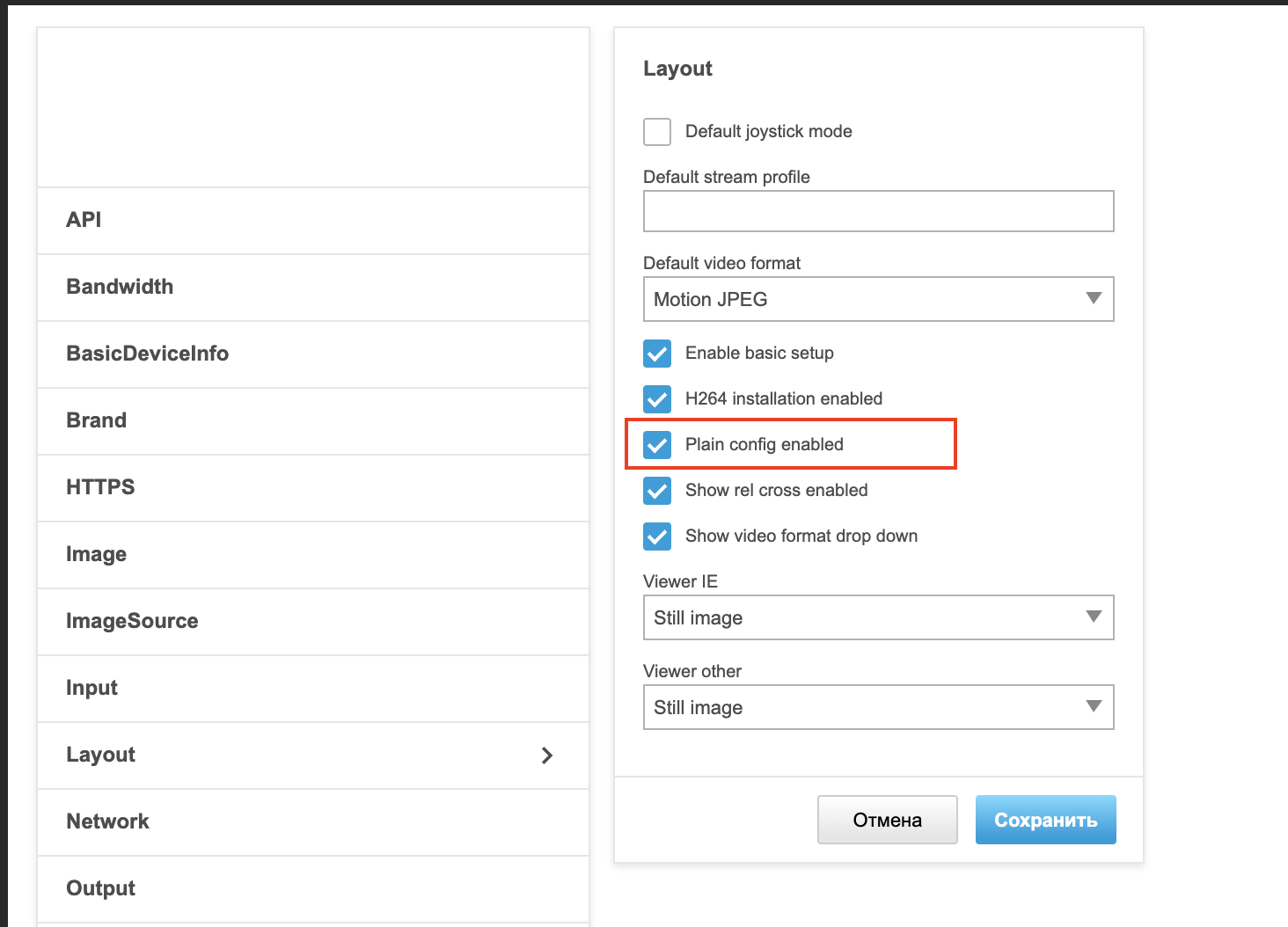
Tip: With plain config enabled, TetherX can use the Axis VAPIX API for PTZ control, which provides smoother movement and better preset support than standard ONVIF.
Fisheye & 360° Cameras
Axis fisheye cameras provide extensive dewarped view options in their setup interface:
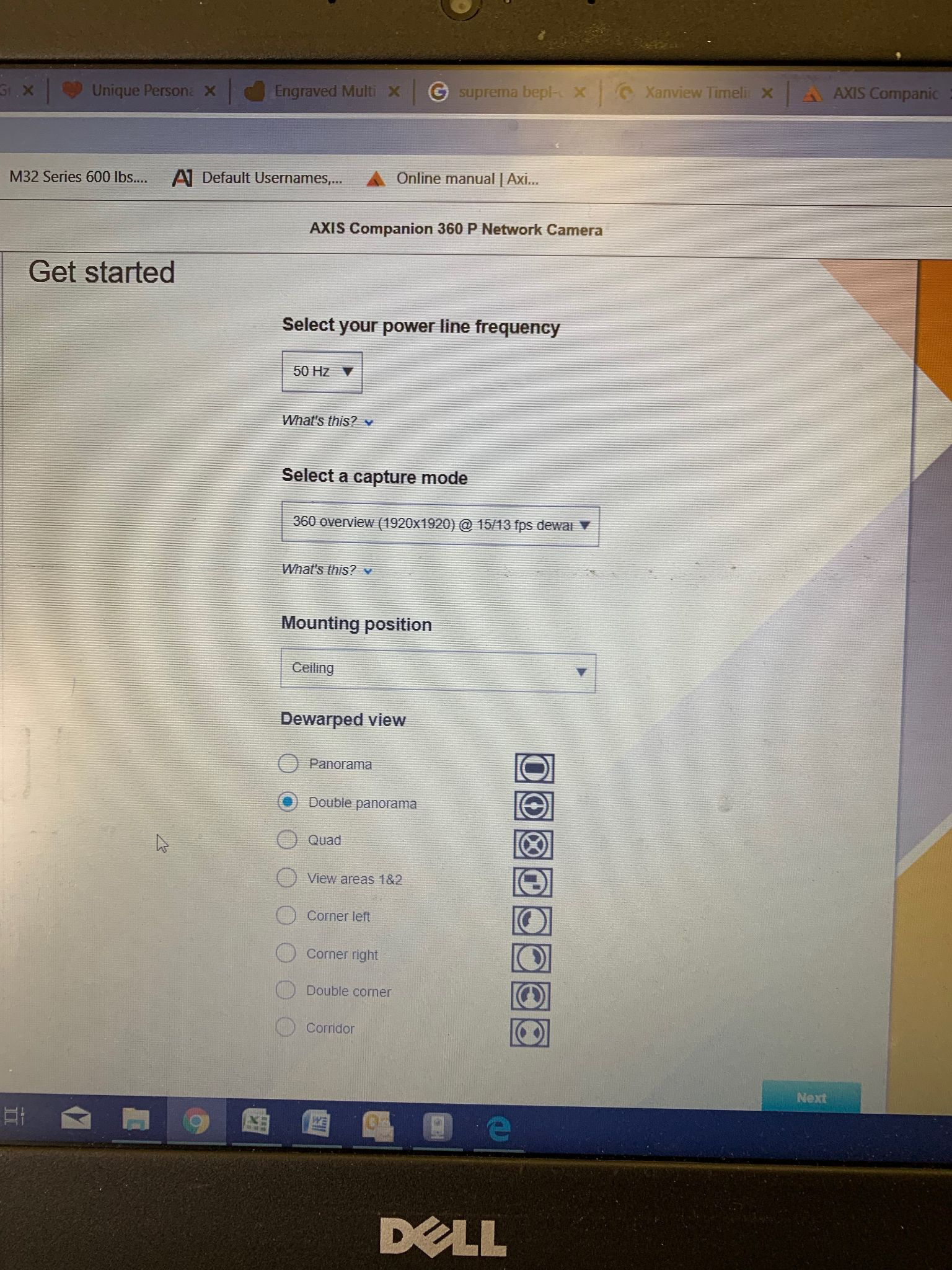
Options include:
- Panorama - Single 180° dewarped view
- Double Panorama - Split view showing two 180° sections
- Quad - Four separate quadrant views
- View Areas - Custom cropped regions
- Corner Views - Left, right, or double corner views
- Corridor - Vertical orientation for hallways
Tip: Double panorama mode provides full coverage in a single channel, which is often the best balance between coverage and TetherBox channel usage.
See Fisheye & 360° Cameras for general fisheye configuration and dewarping options.
Axis Companion Cameras
To record from the Axis Companion range, add the following parameter to your stream URLs:
?Axis-Orig-Sw=true
Add this to the end of both the analytics path and recording path. Contact TetherX if you need assistance.
Axis M3047-P Stream Paths
Use these paths for both analytics and recording on the M3047-P:
| View | Path |
|---|---|
| Overview | /axis-media/media.amp?camera=1 |
| Panorama | /axis-media/media.amp?camera=2 |
| Double Panorama | /axis-media/media.amp?camera=3 |
| Quad | /axis-media/media.amp?camera=4 |
| View Area 1 | /axis-media/media.amp?camera=5 |
| View Area 2 | /axis-media/media.amp?camera=6 |
| View Area 3 | /axis-media/media.amp?camera=7 |
| View Area 4 | /axis-media/media.amp?camera=8 |
| Corner Left | /axis-media/media.amp?camera=9 |
| Corner Right | /axis-media/media.amp?camera=10 |
| Double Corner | /axis-media/media.amp?camera=11 |
| Corridor | /axis-media/media.amp?camera=12 |
Related Articles
- PTZ Cameras Setup Guide - General PTZ setup and controls
- Fisheye & 360° Cameras - Fisheye camera configuration and dewarping
- Camera Compatibility - Full list of supported cameras
- Manual Camera Configuration - Configuring stream paths manually
Referenced in: