
Table of Contents
Local Streaming
TetherX automatically switches to local streaming when your device is on the same network as your TetherBox. Video streams directly from the TetherBox to your device without going over the Internet, giving you faster Live View and smoother playback.
Benefits
- Faster playback - Video streams directly from your TetherBox without round-tripping through the cloud, significantly reducing latency.
- Smoother live view - Higher bandwidth available on local networks means fewer buffering issues and better quality.
- Minimal Internet usage - Video doesn't consume your site's Internet bandwidth, leaving it free for other users and devices.
- Better on slow connections - Even if your site has limited Internet upload speed, local streaming delivers full-quality video to on-site viewers.
Requirements
For local streaming to work:
- Your device (computer, phone, or tablet) must be on the same network as the TetherBox
- Your TetherBox must be powered on and connected to the local network
- Your network must allow devices to communicate with each other (no client isolation)
For playback of recordings:
- The footage must be available locally on the TetherBox - cloud-only recordings cannot be streamed locally
Tip: Local streaming is detected and enabled automatically. No configuration is required.
Connection Status Indicator
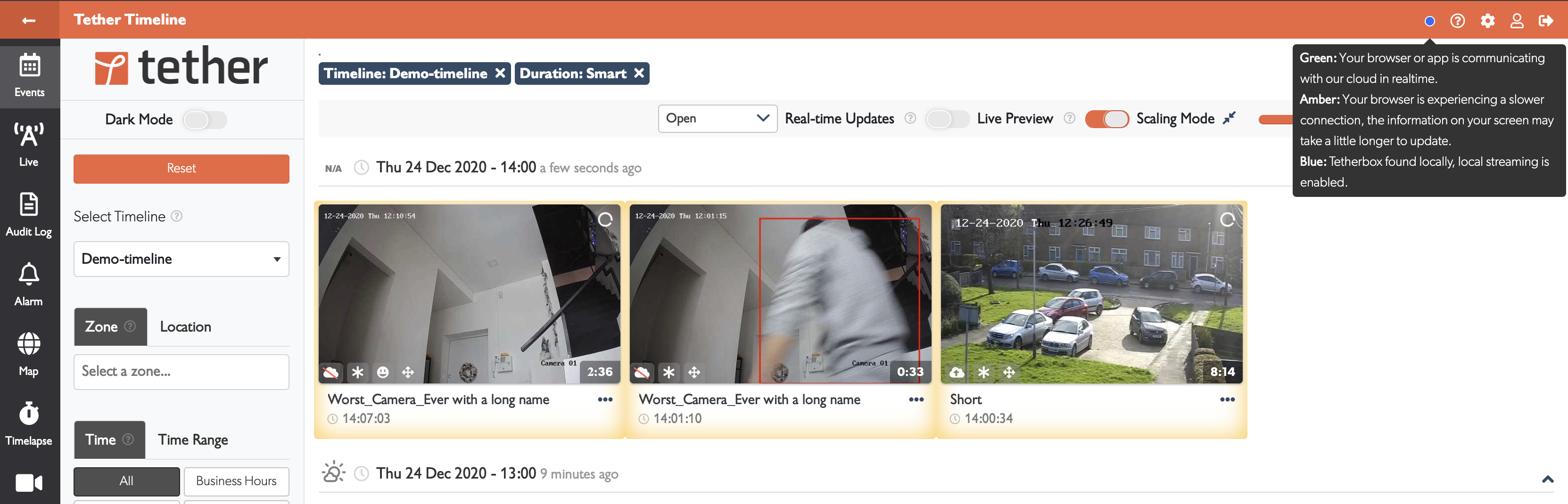
A coloured indicator in the top menu bar shows your connection status:
| Colour | Meaning |
|---|---|
| Green | Your browser or app is communicating with TetherX cloud in real-time. |
| Amber | Slower connection - information on your screen may take longer to update. |
| Blue | TetherBox found locally - local streaming is enabled. |
| Red | Connection has been completely lost. |
Hover over the indicator to see which TetherBoxes are available for local or external streaming.
Tip: The status indicator appears on pages with real-time interactivity such as Events and Live View, but not on static pages like help articles.
Troubleshooting
If you're on the same network as your TetherBox but don't see the blue indicator, follow these steps.
Step 1: Check IP Address Access
Find your TetherBox IP address in the platform or on your router. See Connecting your TetherBox to the Internet for details.
Open the IP address in your web browser. For example, if your TetherBox IP is 192.168.1.123, navigate to:
http://192.168.1.123
You should see the TetherBox login page:
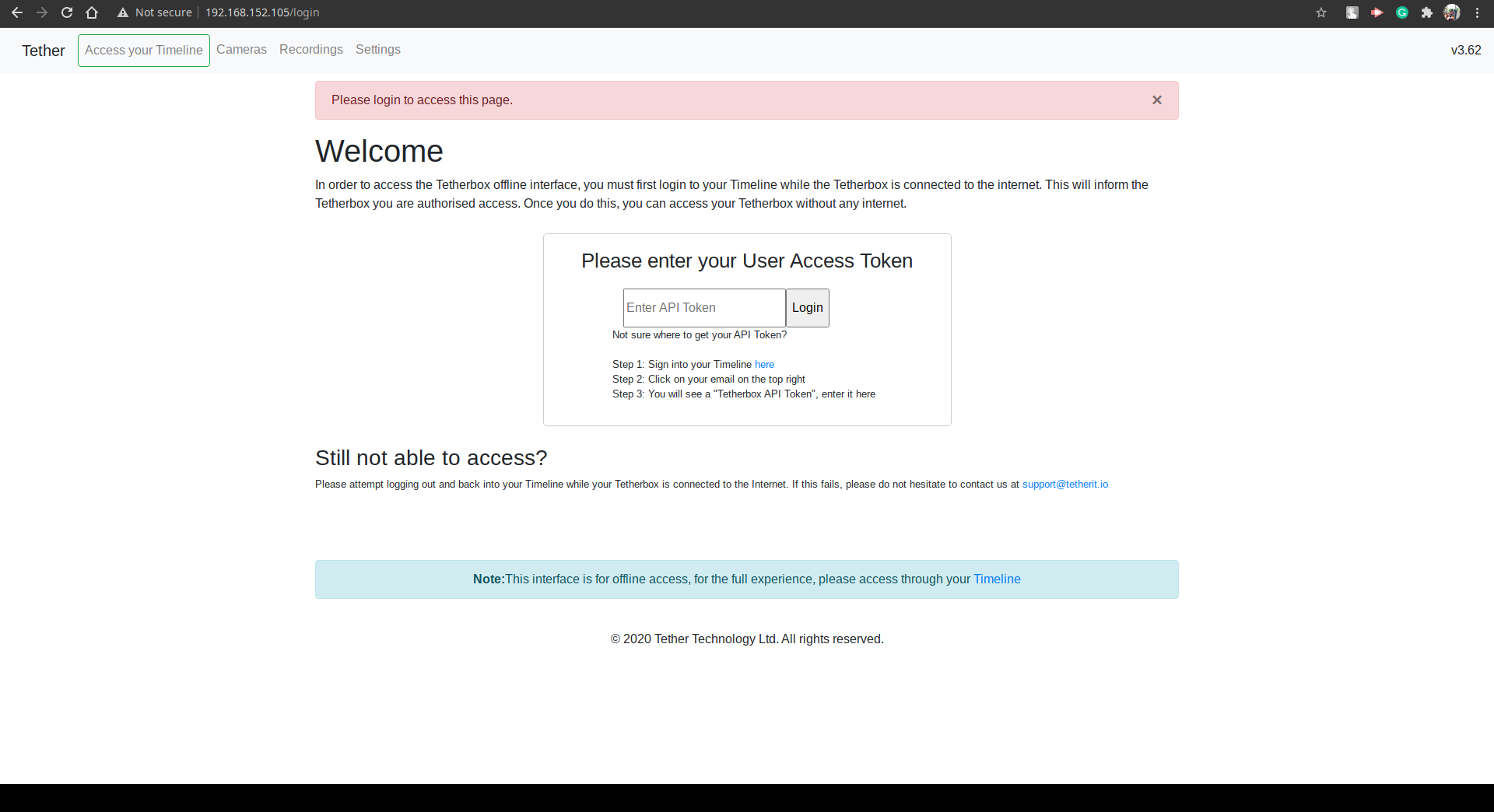
If you see "This site can't be reached" or "Connection timed out", you are not on the same network as your TetherBox:
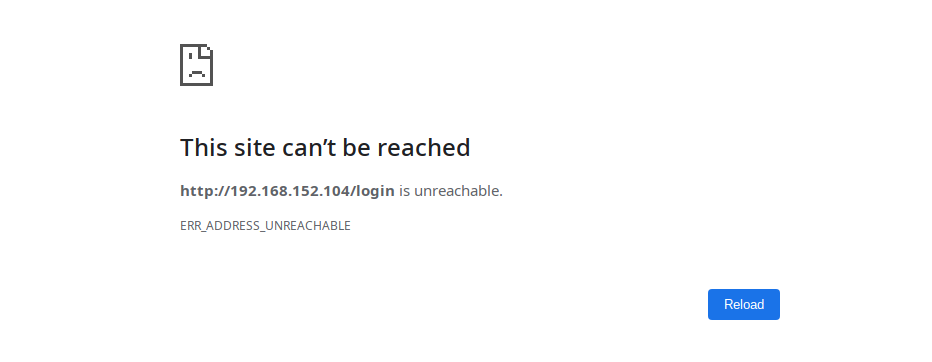
Check your network configuration. You may need to speak to your network administrator and provide them with the TetherBox IP address and your device's IP address.
Step 2: Check Hostname Access
Try accessing your TetherBox using its hostname:
https://lan-SERIAL.timeline.is
Replace SERIAL with your TetherBox serial number. You should see the same login page:
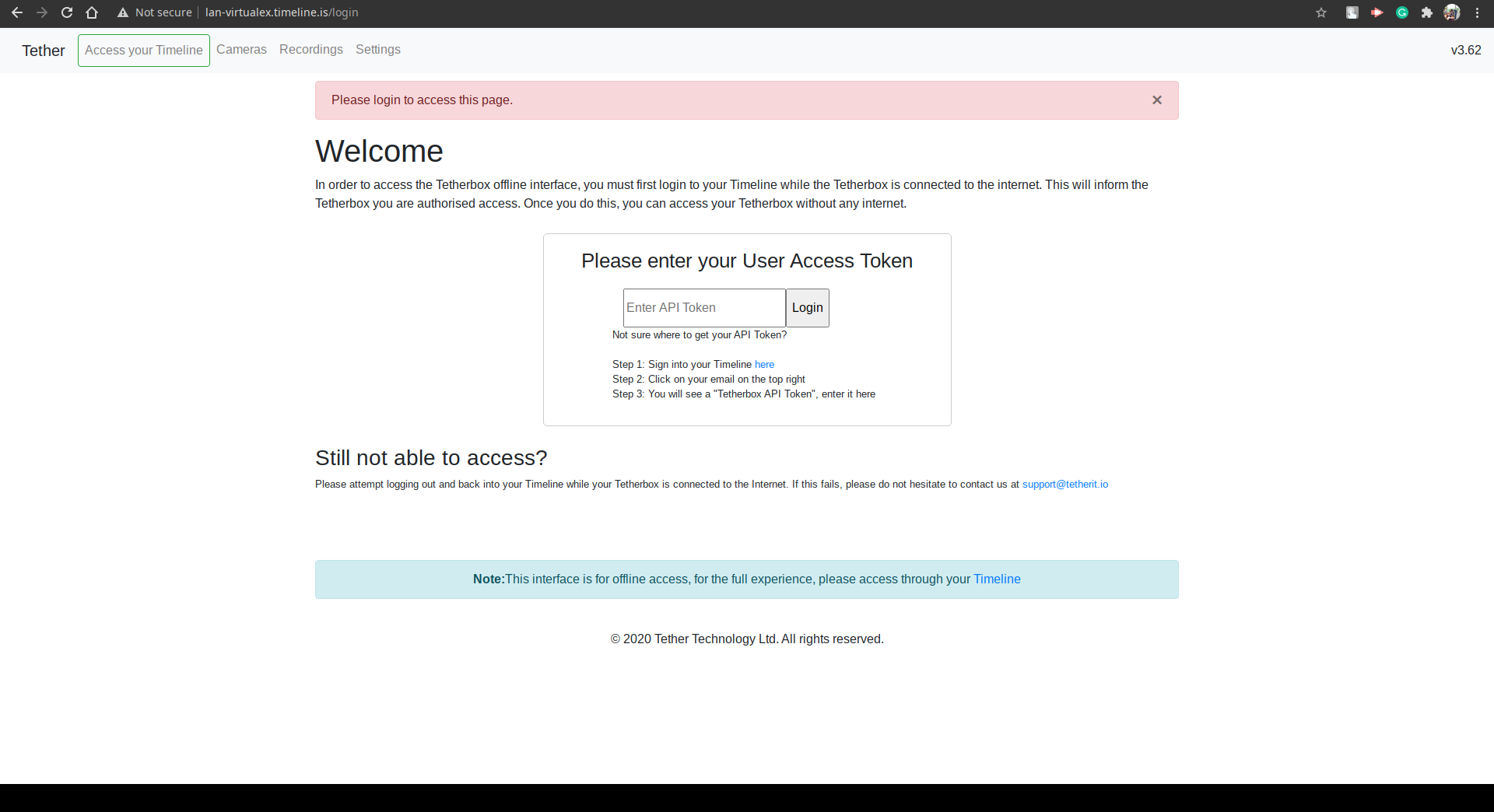
If you see "Hostname Not Found" or a DNS error, your DNS server may be blocking the request. Try changing your DNS server to a public DNS like Google (8.8.8.8) or Cloudflare (1.1.1.1).
Step 3: Test Direct Login
If you can access the TetherBox login page but local streaming still isn't working, test logging in directly.
- Go to Admin and click your name in the top-right corner
- Open the API Details tab
- Copy the TetherBox API Token
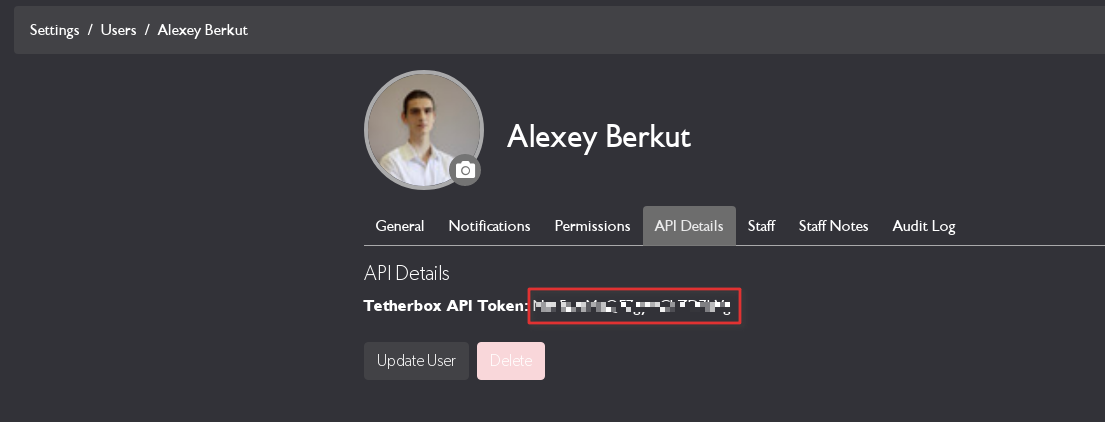
- Paste the token into the TetherBox login page and click Login
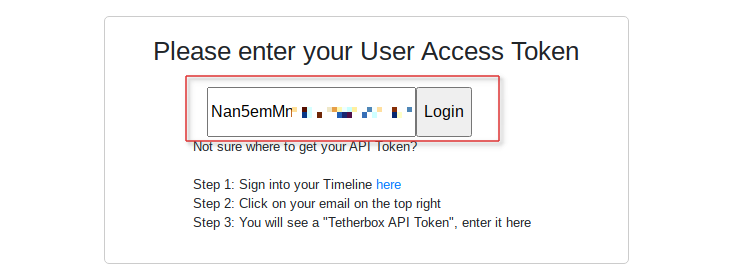
- You should see your cameras:
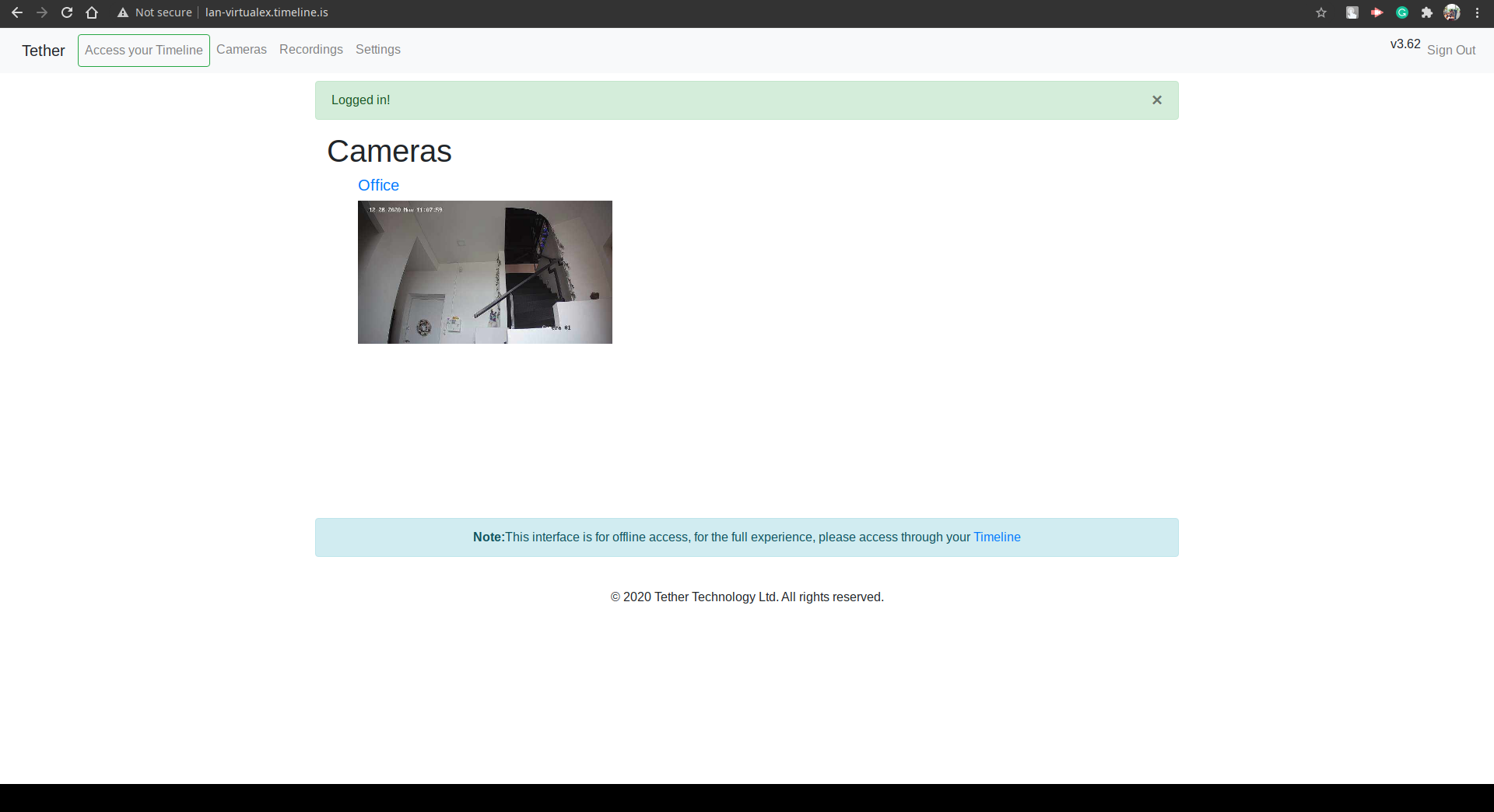
If you can log in but local streaming still doesn't work - contact TetherX support with details of the steps you've taken and screenshots.
If you cannot log in - your TetherBox may not be communicating correctly with TetherX cloud. Contact TetherX support with details.
Corporate Network Considerations
Corporate firewalls and network policies may prevent local streaming even when you're on the same network as your TetherBox. Common issues include:
- Client isolation - Some networks prevent devices from communicating with each other
- Firewall rules - Blocking traffic to TetherBox ports
- DNS filtering - Blocking the
lan-*.timeline.ishostnames - VLAN separation - TetherBox on a different network segment
Speak to your network administrator if you need local streaming enabled on a corporate network.
Related Articles
- Live View - Monitor cameras in real-time with layout presets and PTZ controls
- Events - Browse and play back recorded footage
- Connecting your TetherBox to the Internet - Network requirements and finding your TetherBox IP
- TetherBox Troubleshooting - General troubleshooting guide
Referenced in: