
Table of Contents
Changing DNS Settings on Your Device
Changing your DNS server to a public DNS like Google (8.8.8.8) or Cloudflare (1.1.1.1) can resolve Local Streaming issues, improve browsing speed, and bypass DNS filtering on some networks.
Tip: Local Streaming requires your device to resolve lan-*.timeline.is hostnames. If your corporate DNS blocks these, switching to a public DNS will fix the issue.
Mac
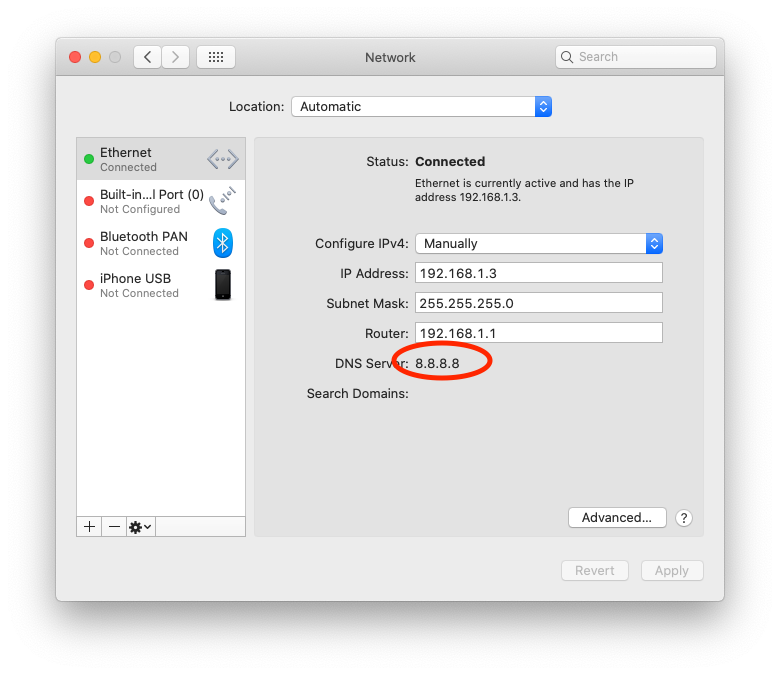
- Open System Preferences (or System Settings on macOS Ventura and later)
- Click Network
- Select your active network connection (the one with a green dot, e.g., Wi-Fi or Ethernet)
- Click Advanced (or Details on newer macOS)
- Select the DNS tab
- Click the + button and add
8.8.8.8(Google) or1.1.1.1(Cloudflare) - Click OK, then Apply
Windows
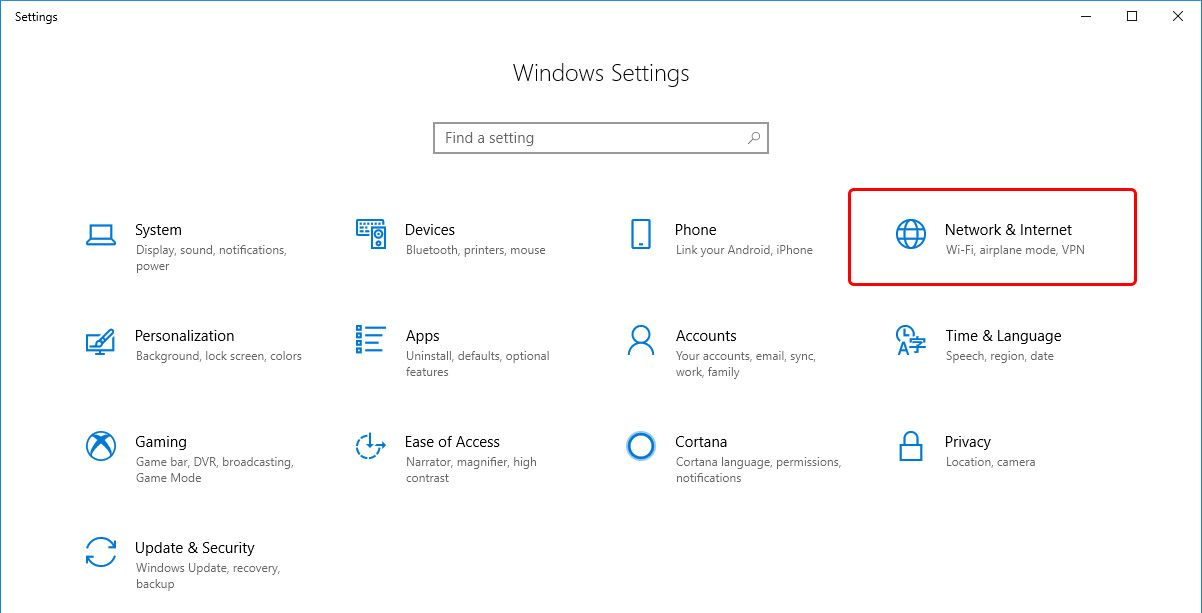
Step 1: Open Network Settings
- Open Settings (press
Windows + I) - Click Network & Internet
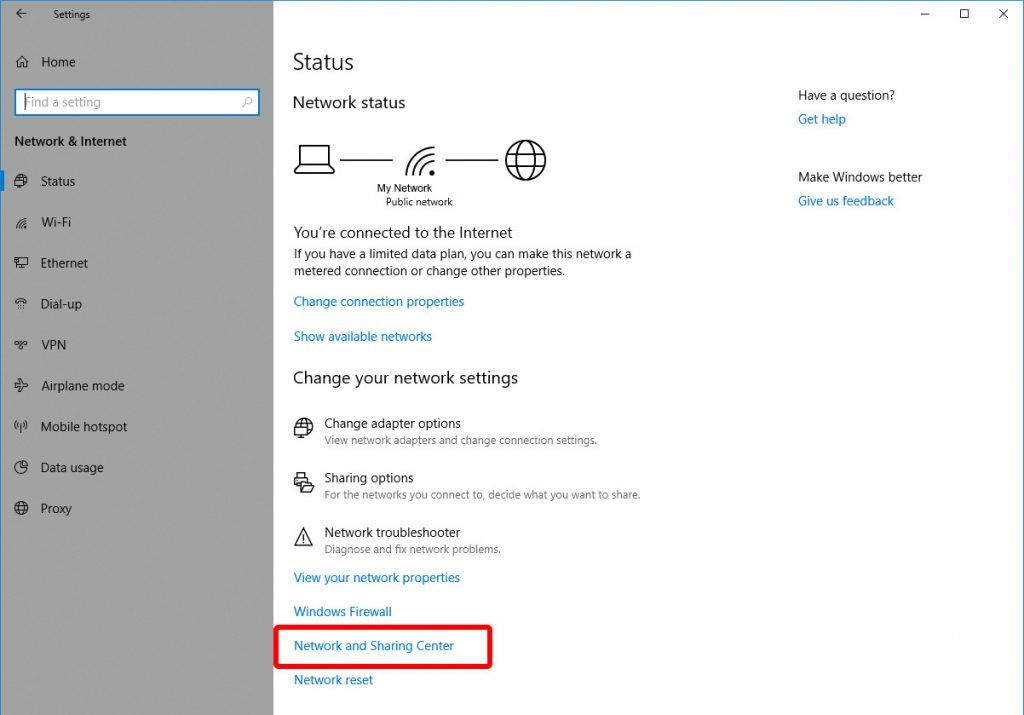
Step 2: Open Network and Sharing Center
- Scroll down and click Network and Sharing Center
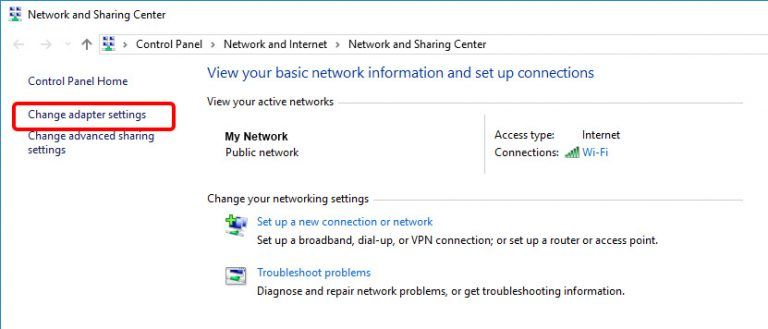
Step 3: Change Adapter Settings
- Click Change adapter settings in the left sidebar
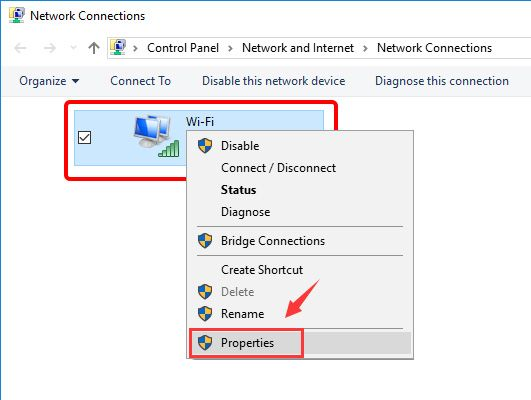
Step 4: Open Connection Properties
- Right-click on your active network connection (e.g., Wi-Fi or Ethernet)
- Click Properties
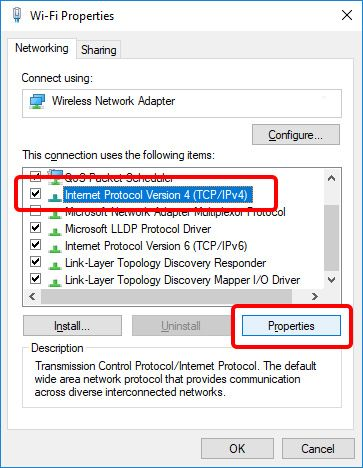
Step 5: Open IPv4 Properties
- Select Internet Protocol Version 4 (TCP/IPv4)
- Click Properties
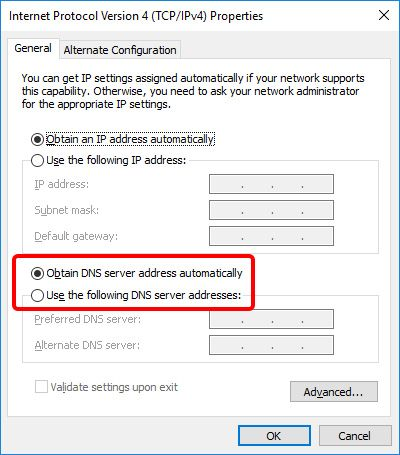
Step 6: Enter DNS Server Addresses
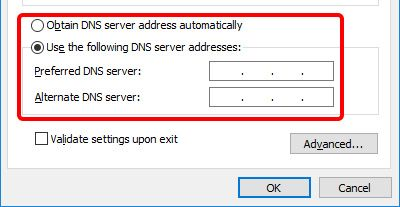
- Select Use the following DNS server addresses
- Enter:
- Preferred DNS server:
8.8.8.8(Google) or1.1.1.1(Cloudflare) - Alternate DNS server:
8.8.4.4(Google) or1.0.0.1(Cloudflare)
- Preferred DNS server:
- Click OK on all dialogs to save
Public DNS Servers
| Provider | Primary | Secondary |
|---|---|---|
| 8.8.8.8 | 8.8.4.4 | |
| Cloudflare | 1.1.1.1 | 1.0.0.1 |
| OpenDNS | 208.67.222.222 | 208.67.220.220 |
Tip: Google and Cloudflare DNS are generally the fastest and most reliable. Cloudflare (1.1.1.1) is designed with privacy in mind and doesn't log your queries.
Related Articles
- Local Streaming - Access video directly from your TetherBox on the same network
- TetherBox Troubleshooting - General troubleshooting guide
- Connecting your TetherBox to the Internet - Network requirements
Referenced in:
Last updated: January 31, 2026